Upgrading NeoVim Config with Kickstart.nvim
I was exploring how to configure NeoVim for React/TypeScript development and came across AstroNvim. Its beauty blew my mind 🤯!
These are known as NeoVim frameworks. There are more in the market: e.g. NvChad. I don’t remember seeing so many frameworks when I started using NeoVim 3 years ago. I am still using basic init.vim to configure basic plugins, and they don’t look as awesome as these frameworks.
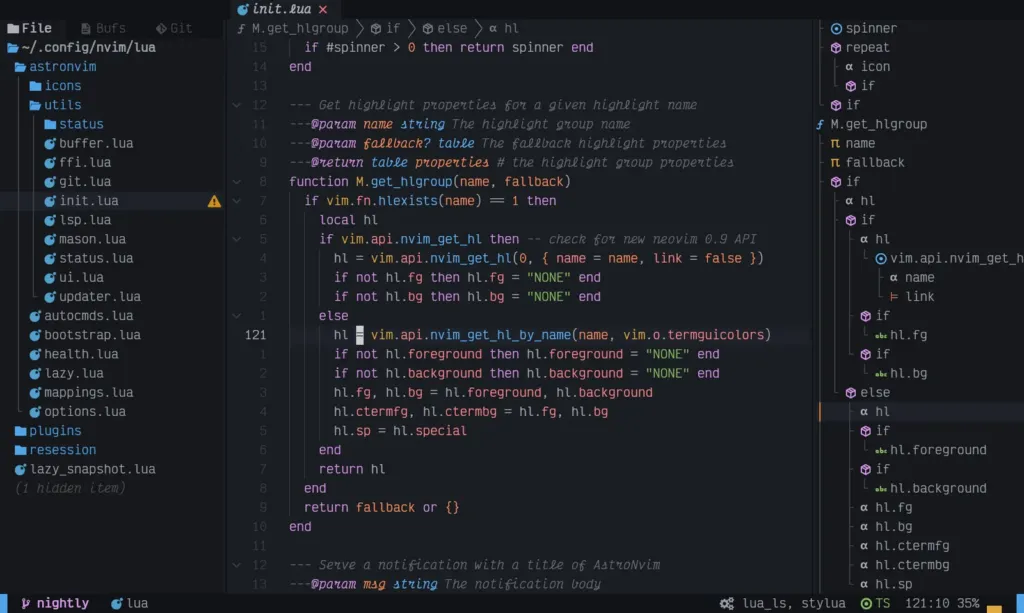
UI of AstroNvim. Isn’t it beautiful?
UI of AstroNvim. Isn’t it beautiful?
It’s time I upgraded my NeoVim configs to stay updated.
AstroNvim vs Kickstart
While AstroNvim looks super cool, I don’t prefer its hands-off approach to configuration. I like to know what is inside my config files, and why. So I found an alternative: Kickstart.
Kickstart.nvim: A launch point for your personal nvim configuration
The author of Kickstart.nvim claims it’s not a framework; it’s a basic configuration to use as a starting point. Even with the basic configuration, it looked far more aesthetic than my current config.
Here is a 30-minute video explaining everything about Kickstart.nvim by the author himself. If you don’t have the time, just watch the first 3 minutes for a quick introduction.
What I like about Kickstart.nvim
Here are why I like Kickstart:
- Well-commented config files: It only has a single
[init.lua](https://github.com/nvim-lua/kickstart.nvim/blob/master/init.lua)file, with plenty of comments. - Lua-based config files
- I used
init.vimbefore. In comparison, using Vim API through Lua felt cleaner. - I had to learn Lua separately, but it wasn’t a big deal. All programming languages are the same with few differences. A basic understanding is enough to get things done.
- I used
- Automatic Plugin Manager Installation
- If you don’t have a plugin manager, it downloads
[lazy.nvim](https://github.com/folke/lazy.nvim)for you automatically. Before, I had to configure plugin-manager separately from install-script. This simplified my install script. - Lazy.nvim seems more modern than vim.plug.
- If you don’t have a plugin manager, it downloads
- Helps you master key binds: I tend to forget about the useful key binds I have. Kickstart uses WhichKey to help you remember your Neovim keymaps by showing available keybindings in a popup as you type.
- Telescope for Fuzzy Finding: I used
fzf.vimbefore. Telescope is much more aesthetic. - Pre-configured LSP with Mason support
- Ok, I haven’t figured this out completely yet. I have a vague sense of how LSP works. I used YouCompleteMe before to get autocompletion for C/C++, but Java/Kotlin never worked properly.
- I am hoping to master it this time. I will write up a new post if I manage to get this working. For now, I am keeping the basic settings Kickstart has provided.
- If you need to install any additional package for LSP, the Mason plugin takes care of it. Again, I have no clue how this works yet.
Migrating to Kickstart from my Old Config
My old config didn’t have many customizations, so migration didn’t take long. I first backed up my old config before switching to Kickstart and then filled in the gaps I noticed. Here are the additional things I added to Kickstart:
[christoomey/vim-tmux-navigator](https://github.com/christoomey/vim-tmux-navigator): I always use NeoVim inside Tmux. This plugin helps me navigate in and out of NeoVim to different panes around me.[nvim-neo-tree/neo-tree.nvim](https://github.com/nvim-neo-tree/neo-tree.nvim): Kickstart didn’t come with any file navigator plugin so I added NeoTree.- Switched the theme to Catppuccin.
Conclusion: I love it
My configuration is much more organized than before. There are still some parts of the configuration I don’t understand, but overall I love it! ❤️
Some next steps I have in mind:
- Understand the LSP configurations more and configure Java/Kotlin/Python servers.
- Check out what configuration AstroNvim is using and port the ones I like into my configuration.